Introduction
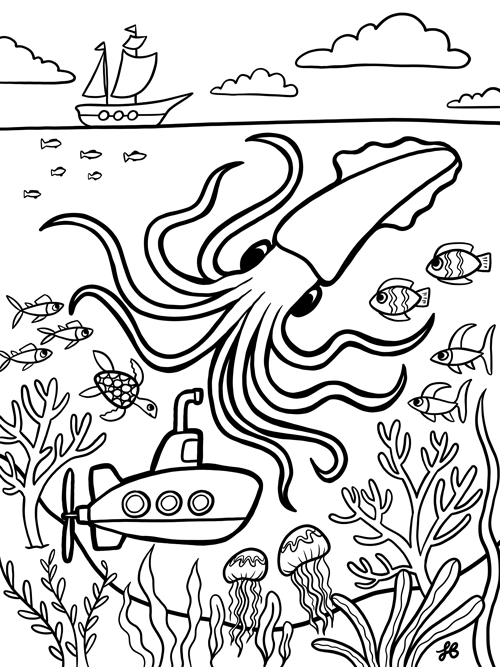
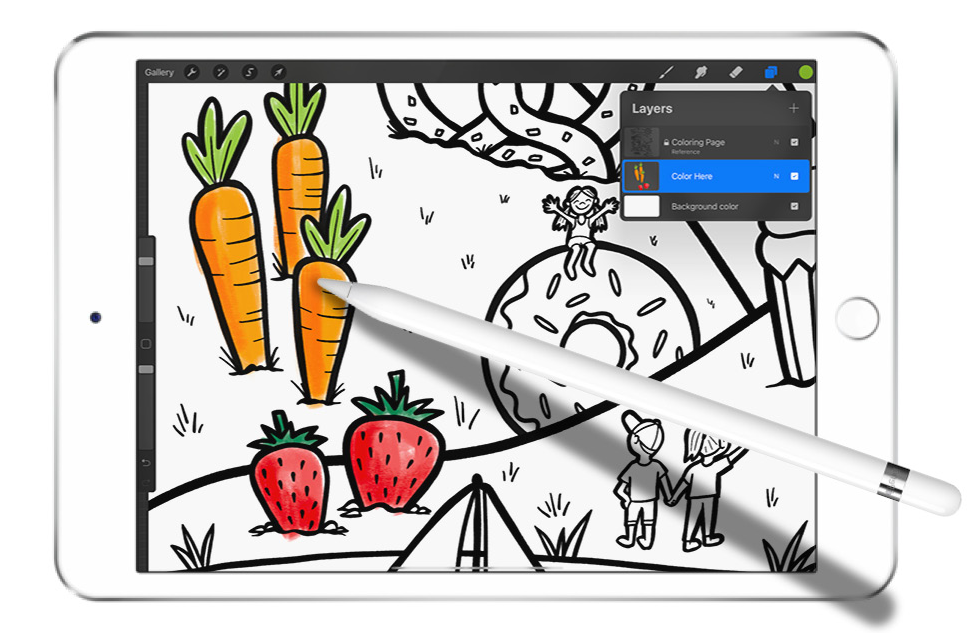
Coloring pages in procreate serve as a digital bridge between traditional fine-motor skill development and modern classroom technology integration. According to the National Association for the Education of Young Children (NAEYC), intentionally selected media and technology tools can be effective for supporting learning and development when used in balance with hands-on materials. Educators and homeschool parents utilize digital illustration applications to generate bespoke Coloring Pages that target specific developmental thresholds, allowing for infinitely adjustable line weights, customized scaffolding, and seamless conversion into printable physical worksheets. Integrating digital drawing tools into early childhood curricula enhances precision control, visual-spatial awareness, and pencil grip preparation through adaptable canvas environments. Establishing structured digital-to-analog workflows ensures that learners build essential foundational competencies required for advanced Handwriting & Tracing tasks across diverse learning spaces.
Curriculum Practice Snapshot:
- Core Focus: Creating, exporting, and printing custom digital illustrations for early childhood fine-motor practice.
- Target Scope: Pre-K through Grade 2 classrooms and structured homeschool learning environments.
- Key Recommendation: Export high-resolution vector or raster templates at 300 DPI to maintain crisp physical print quality.
Core Principles and Detailed Overview
Digital illustration workflows in early childhood education depend on establishing clean line art, standardized canvas dimensions, and repeatable pedagogical templates. Designing custom practice materials within an application like Procreate requires setting canvas resolutions to standard paper sizes—such as Letter or A4—at a minimum of 300 pixels per inch to ensure lines remain sharp when printed for classroom distribution. Educators leverage layer management features to separate tracing guides from decorative elements, enabling differentiated instruction where complex backgrounds can be removed for students requiring simplified visual fields. Furthermore, this digital approach supports targeted Learning Activities that reinforce cross-curricular objectives, merging art, geometry, and literacy practice into cohesive printable packets found throughout Teacher Resources hubs. By controlling brush stabilization settings within the software, instructors can intentionally design line widths that match the developmental grip stages of young learners.
Key Specifications and Breakdown
| Grade / Developmental Stage | Target Learning Skill | Instructional Strategy & Scaffolding |
|---|---|---|
| Pre-Kindergarten (Ages 3-4) | Gross and fine motor control | Use thick, bold outlines (8px to 12px brush size) with large, simplified geometric shapes to accommodate emerging palm grasps. |
| Kindergarten (Ages 5-6) | Pencil precision and boundary control | Incorporate moderate line weights with varied directional shapes, pairing digital line art with standard Worksheets for physical practice. |
| Early Elementary (Ages 6-8) | Spatial reasoning and intricate coordination | Introduce complex thematic scenes with fine detail layers, encouraging multi-step coloring patterns and controlled shading. |
Early childhood technology integration must prioritize intentional skill development, active engagement, and the preservation of tactile manipulative experiences alongside digital creation. — National Center for Education Statistics (NCES)
Step-by-Step Practical Application and Guidelines
Implementing digital art templates for physical classroom use requires a systematic three-stage workflow encompassing digital creation, file optimization, and physical reproduction. First, establish a standardized canvas template in the software measuring 2550 by 3300 pixels at 300 DPI, utilizing a dedicated sketching brush with high stabilization turned on to eliminate jagged edges. Second, sketch or import line art on a transparent layer, ensuring all enclosed shapes are completely sealed to prevent accidental digital flooding if used interactively, though primary focus remains on generating clean silhouettes for physical printing. Third, export the finalized artwork as a high-contrast JPEG or PDF file, transfer the file to a desktop printing station, and reproduce physical copies on heavy-weight paper stock to withstand various coloring utensils.
Common Challenges and How to Avoid Them
Over-complicating digital line art remains a frequent obstacle when educators design custom tracing materials for young children. Intricate designs with broken outlines frustrate developing learners and fail to support proper motor control progression. Educators avoid this challenge by maintaining strict layer hygiene, keeping outline strokes separate from shading guidelines, and testing print legibility at actual scale prior to full classroom distribution. Ensuring high contrast between foreground lines and background elements prevents visual fatigue and supports learners with diverse visual processing needs during independent practice time.
💬 Frequently Asked Questions
Explore More Early Learning and Classroom Resources on Knowalla
Discovering innovative instructional tools helps educators maintain engaging, skill-focused environments that support holistic child development. Explore comprehensive printables, structured activity guides, and creative teaching aids by visiting the Knowalla homepage to elevate daily classroom instruction.
Printable Coloring Page Previews